Navigation
Four scenes with a few pages each, and four tracks you can switch at any time. The four left keys do all the navigation:
- 1Scenes
- 2Tracks
- 3The menu of this screen
- 4Pages
Scenes: ESC
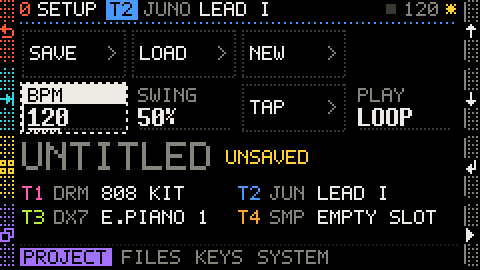
Four scenes in two kinds, numbered as on the screen. 0 SETUP comes first and holds everything global; 1, 2 and 3 are the music itself:
| Scene | For | Pages |
|---|---|---|
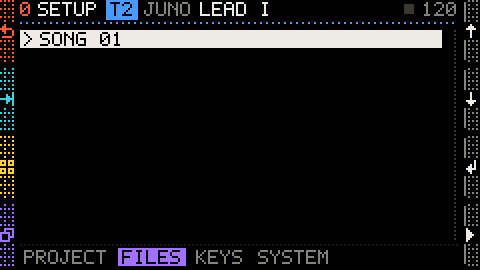
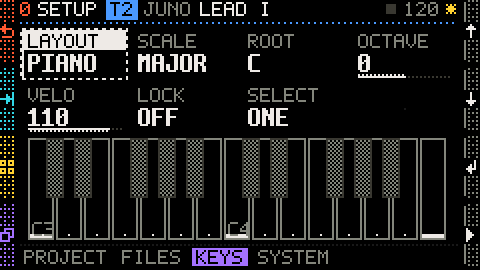
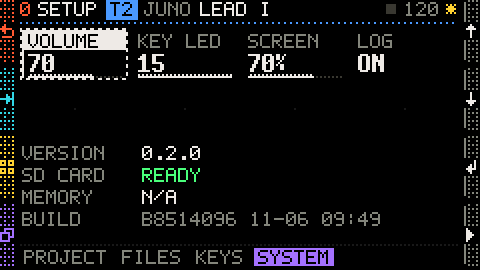
| 0 SETUP setup | global: the project and its files, the keyboard for every track, the system | PROJECT, FILES, KEYS, SYSTEM |
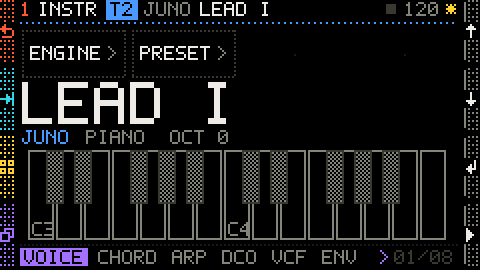
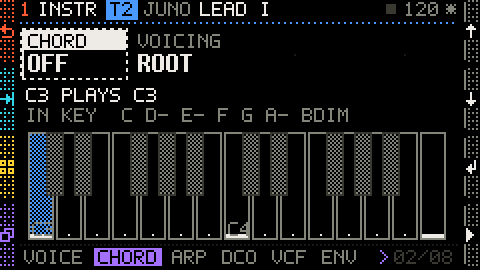
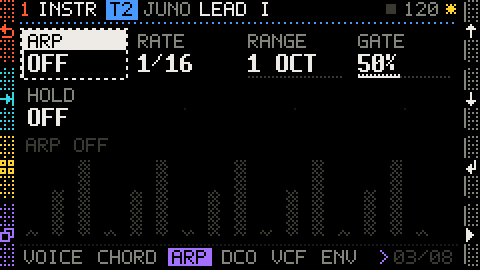
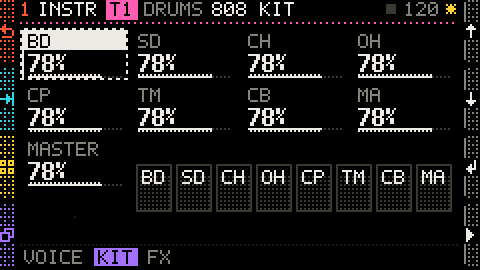
| 1 INSTR instrument | what the current track sounds like: engine, sound, its chord and ARP, parameters, effects | VOICE, CHORD, ARP, engine pages, FX (drums: VOICE, KIT, FX) |
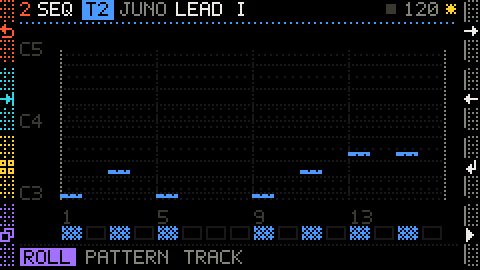
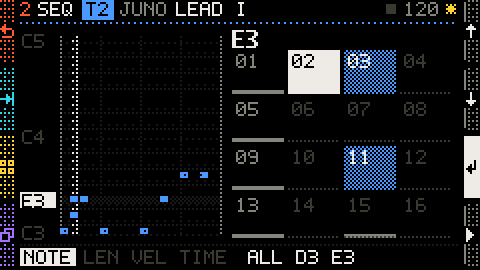
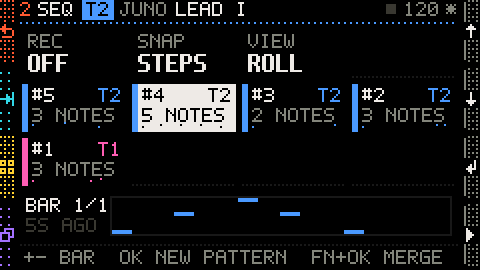
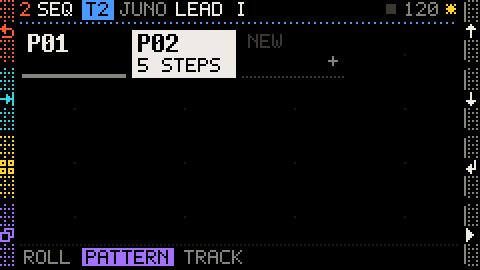
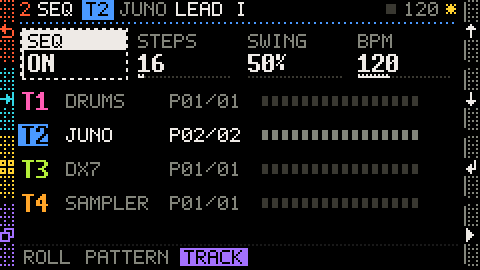
| 2 SEQ sequencer | what the current track plays: notes, recording, patterns | ROLL / STEP (DRUMS on a drum track), PATTERN, TRACK |
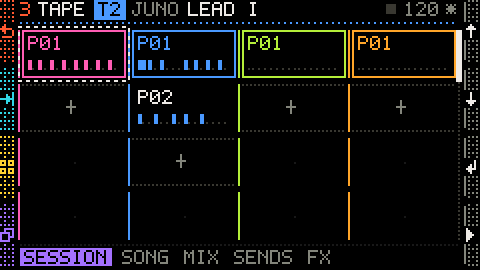
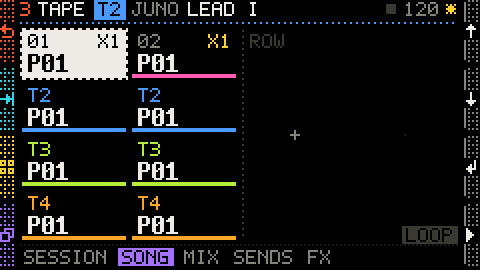
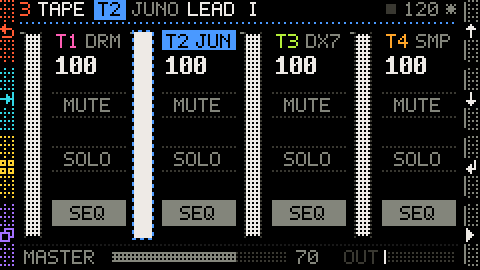
| 3 TAPE tape | all four tracks together: launching, the song, the mix, sends, master effects | SESSION, SONG, MIX, SENDS, FX |
Tap ESC: the three music scenes in turn, 1 → 2 → 3 → 1. The groovebox starts in 1 INSTR on the VOICE page, on track T1 DRUMS.
2 SEQ: write notes.
3 TAPE: launch, arrange and mix.
Back to 1 INSTR: sounds and parameters.
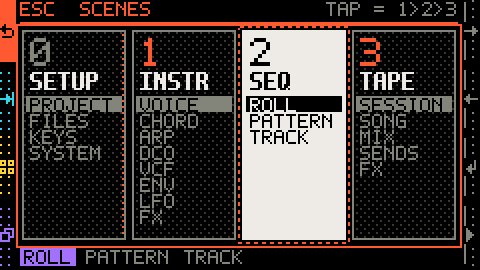
Hold ESC: the scene map, four tall columns, one per scene; press any key of a column to jump straight there. The tap ring never enters SETUP: column 1 is the way in.
- 10 SETUP: dotted rule, dim number
- 21 INSTR
- 32 SEQ (current)
- 43 TAPE
- 5Tap ESC = 1 > 2 > 3
- 6Hold
- 7Current scene: fully lit
- 8SETUP: half lit
Tap column 2: straight to 1 INSTR. Release ESC and the map folds away.
Tap column 1: 0 SETUP, on the page you were last on.
In SETUP a tap on ESC goes back to the scene you came from.
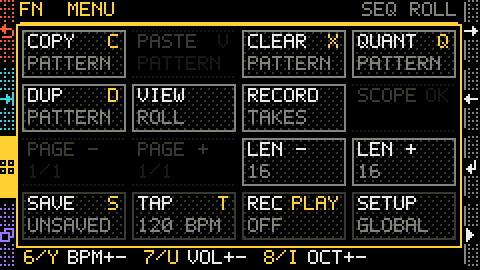
In a pop-up ESC cancels; in SEQ with steps selected, ESC clears the selection first. The FN menu also reaches SETUP (its bottom-right item, see The menu on each screen).
Tracks: TAB
Four tracks, with the same colour everywhere: T1 DRUMS pink, T2 JUNO blue, T3 DX7 lime, T4 SAMPLER amber.
Tap TAB: next track. For about 0.8 s only the matching row of the left keys is lit (T1 = the ESC row … T4 = the CTRL row), so you see at a glance which track you are on.
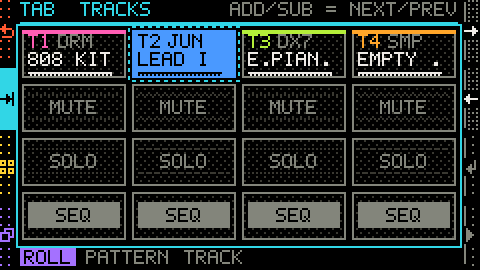
Hold TAB: the track map, laid out like the MIX page.
- 1Row 1: select this track
- 2Row 2: mute
- 3Row 3: solo
- 4Row 4: sequencer on
- 5Current: T2
- 6Hold
- 7Select track
- TAB + ↑← / ↓SUB: next / previous track (the map's title says so).
- Row 1 of the map shows each track's engine and sound; rows 2 to 4 switch at once, like on MIX.
- FN+TAB: previous track.
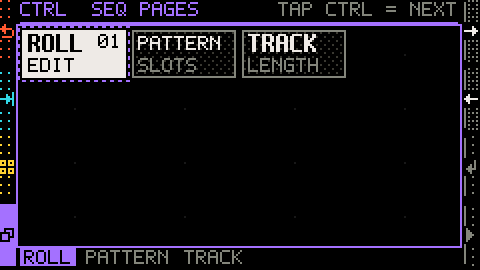
Pages: CTRL
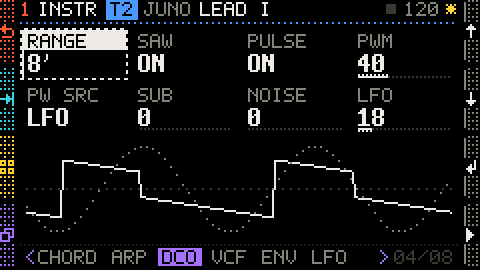
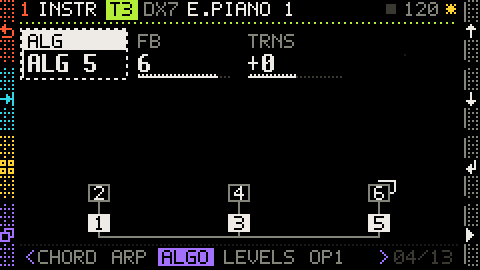
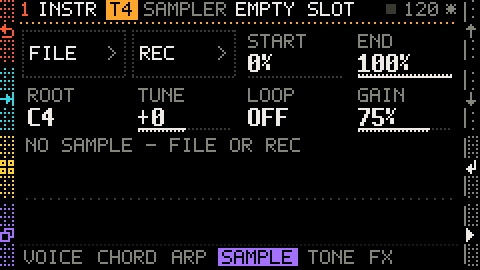
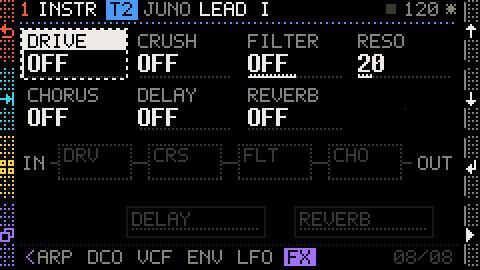
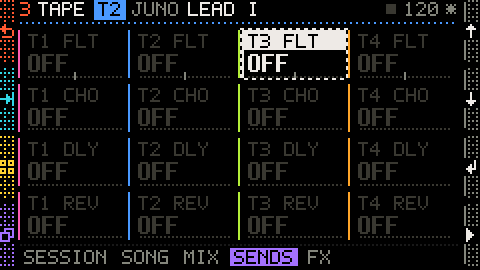
The page tabs are at the bottom of the screen, the current one on violet (like ROLL); when there are too many you see < > at the ends and "current / total" on the right.
Tap CTRL: next page (on release).
Hold CTRL: the page map; each cell shows the tab and a short description.
Tap a cell to jump to that page; you stay there after releasing.
- CTRL + ↑← / ↓SUB: next / previous page; FN+CTRL: previous page.
- Each track remembers which INSTR page it was on.
- The page map's title: TAP CTRL = NEXT.
Hold a left key = a map
Hold ESC, TAB or CTRL for more than 250 ms and the middle of the screen becomes a map: each cell sits on the GRID key that picks it. Holding FN shows the menu of the current screen instead, laid out the same way (see The FN menu).
- 1Current page
- 2Another page
- 3Map title and hint
- 4Hold
- 5Fully lit: current
- 6Half lit: can pick
- 7Off: silent while held
| Light | Means |
|---|---|
| fully lit | the current item |
| half lit | can be picked |
| off | nothing there; while you hold, the pads are off too (silent) |
Release the left key and the map folds away.
Back and cancel
- 1OK confirms
- 2ESC cancels
- 3Consequence (in red)
- 4Blinking: waiting for you
- 5Cancel
- In a pop-up (lists, confirmations, text entry, the RECORD panel, the open FN menu) ESC closes or cancels.
- In 0 SETUP ESC goes back to the scene you came from.
- In a confirmation ↵OK confirms and ESC cancels; overwriting, deleting and discarding unsaved work always ask first.
- In SEQ with steps selected ESC clears the selection first.
Scene and page map
Every scene and page at a glance; click a picture to jump to its explanation: